Most people join FDPA as subscribers by participating in one of our actions or events online. However, we also enroll people when they sign a registration card or a petition in support of fair districts. These paper and pencil registrations must be transcribed into a simple spreadsheet to be added to the FDPA lists.
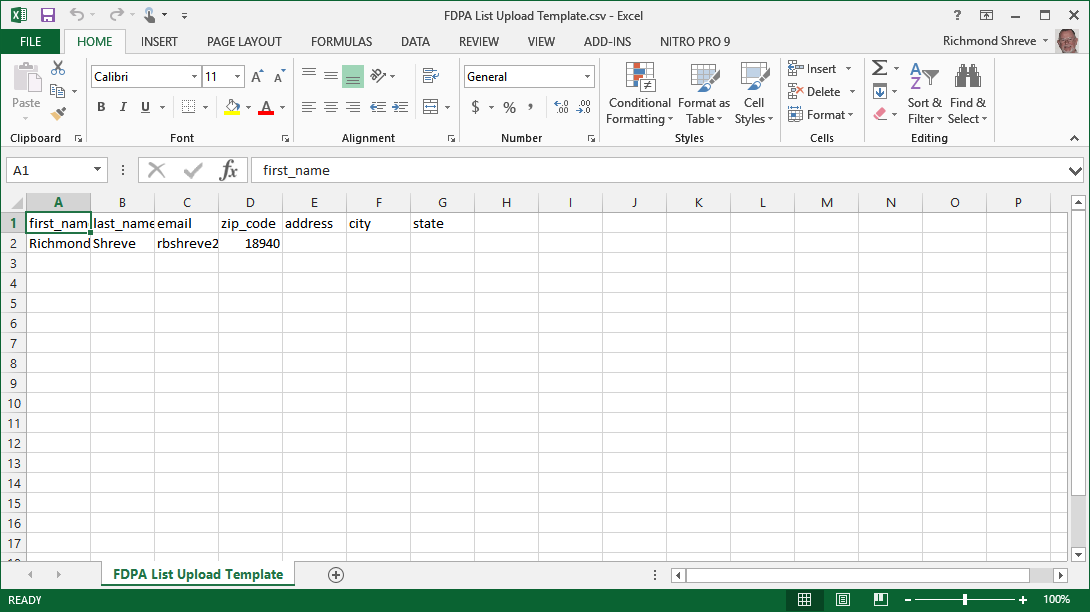
The spreadsheet has a column for each field of information to be added to the list: first name, last name, email, etc. When you upload one of these sheets, Action Network will place the information into the corresponding fields in the master database. Note that you must save the spreadsheet as a “comma separated value” (.csv) file. You can also add one or more tags to the names
Start Organizing
Email addresses are manditory. If you have only an email address you can include that person as a subscriber. But without the email address we have no way to include a person in our list. If the email address is hard to read, make your best guess and then include a comment column with your second guess. That way if the email bounces, the administrator has a way of making a second try.
Once your spreadsheet is ready to upload, log in to your Action Network administrator account. Choose “Start Organizing” by clicking the button on your screen and then select “Uploads”
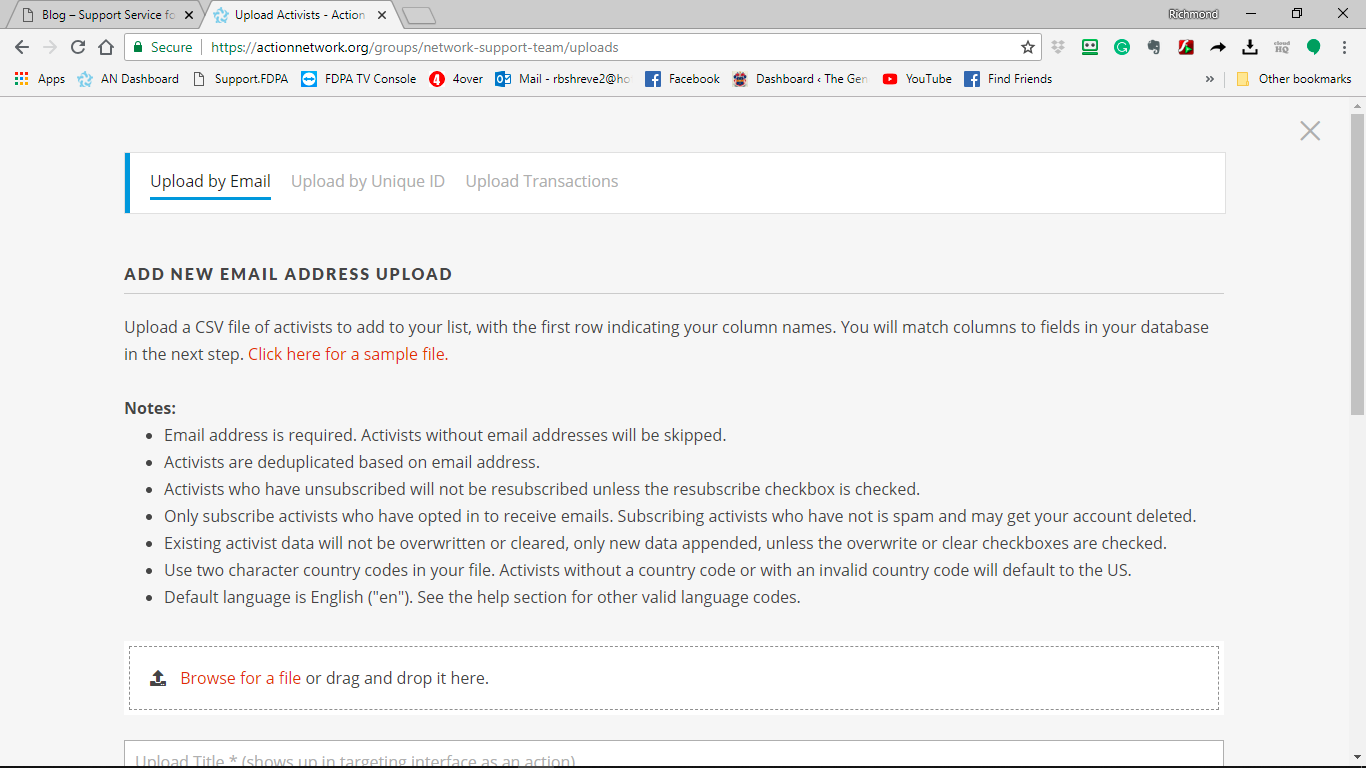
The top of the page has instructions. When you scroll down there is a form for information about your upload. Fill in the file name for your spreadsheet.
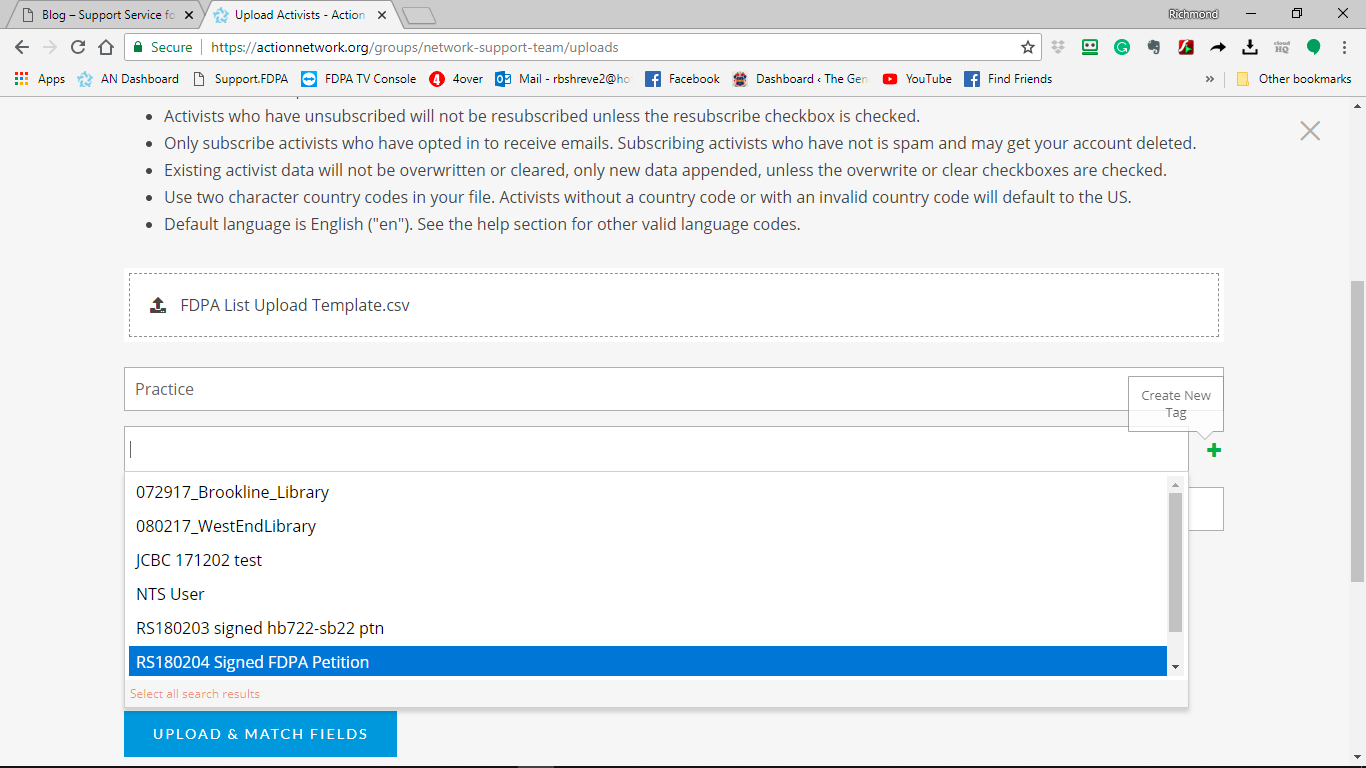
Create a human-friendly name for the upload so that you and others know what it is later on. I strongly recommend that you start with your initials and a date code. That way others will know who added the names and when. So, I should have named my practice
Tag the Subscribers
In this example, our new subscribers signed a petition. We will tag them by simply selecting the appropriate tag from the list of tags in the form. In this
Match Fields
If you are using a spreadshee based on the template, Action Network will match your fields automatically. If the column headings are not exact matches you will choose the correct match from a dropdown list. You may also create new fields if necessary, say to identify a polling place where the petition was signed.

Once this is done, you are ready to upload your file by pressing the blue button. (Notice the cancel option in red type to the left of the button)
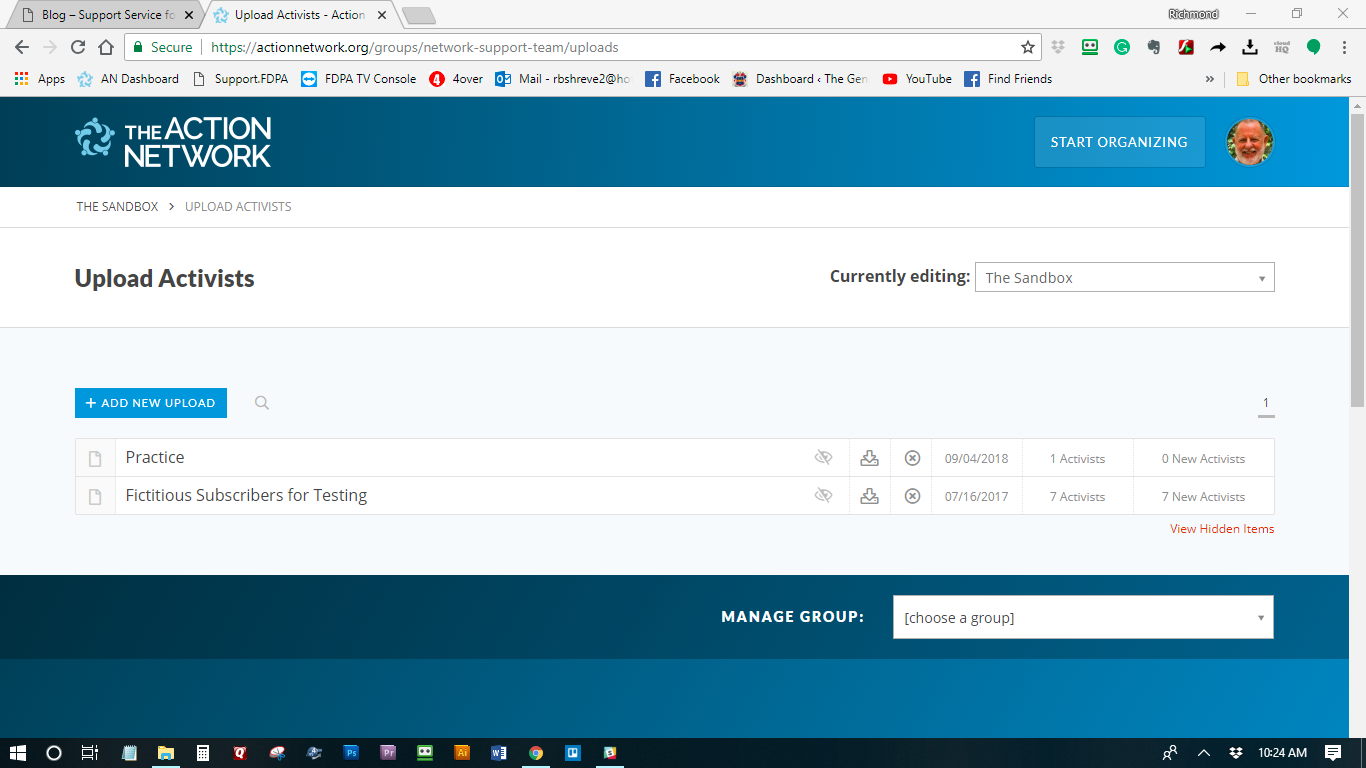
The page above will display showing your new upload at the top of the list of prior uploads. In the right-hand column is a tally of how many names were successfully uploaded, and how many of those were “new” to the list.
Note: Most administrators are not give the option to overwrite old data. If your list will update old information please ask for support.