Zoom is a popular program for online meetings. Most of its features
This page focuses on screen sharing and remote control to the exclusion of the other features. Should you want to know more about meetings, the Zoom.us website has excellent videos and demos. The PDF documentation is here: (click)
To use the remote control feature, you must sign up (free) and then install the Zoom app on your device. To avoid delay in joining your first meeting, sign up in advance.
Or, when you are ready to join the meeting, open your web browser (chrome, firefox, safari, etc.) and go to https://zoom.us. Choose “Join Meeting” in the upper right corner of your screen:

When you enter a meeting number, the website will invite you to sign up, and when that’s done you will see a screen like the one below.
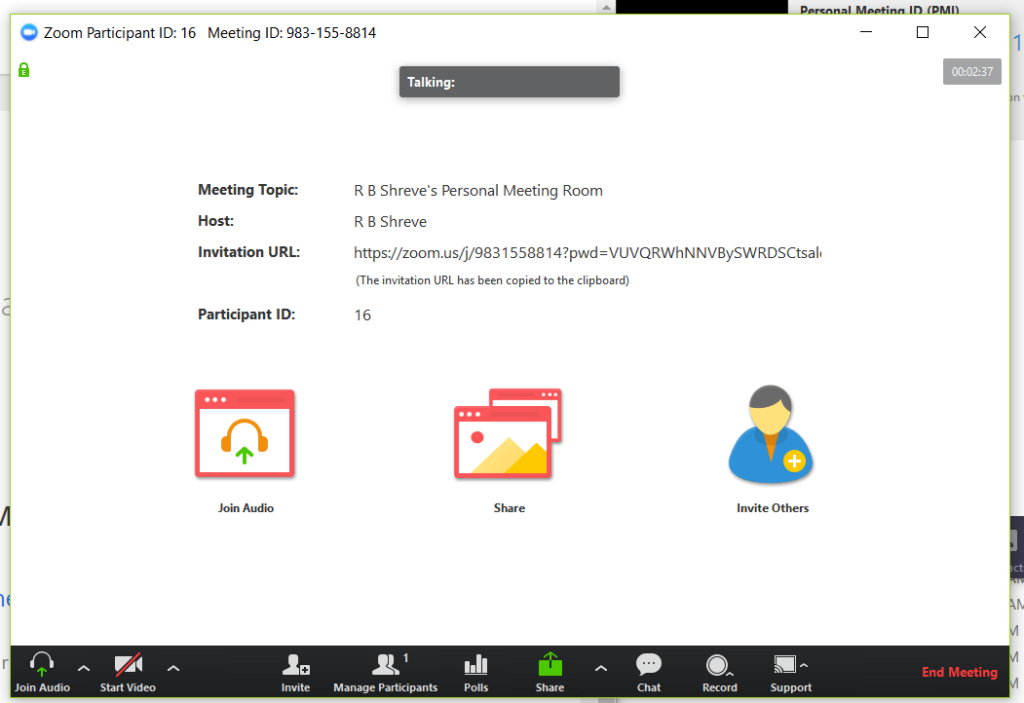
Take a moment to familiarize yourself with the controls in black at the bottom. The left two icons represent a headset and a video camera. Clicking the icon enables or “mutes” either or both. The silhouette icon with a plus lets you email an invitation to join the meeting. The pair of silhouettes tells you how many, including you, are in the meeting. Clicking this icon allows you to see who they are and control some functions. The next icon is for polling participants. The green “share” icon represents a screen on your computer that you may share with the meeting. The text
If you wish to have the other person control your computer, you must first initiate screen sharing. When the other person is watching your screen and you click the support button, he or she will be invited to take control of your cursor.
Although there is lots more you can do with Zoom, this should suffice to get you connected to FDPA support for training or help with a project.