You will need to download and install the Blizz App on your tablet or computer to participate in a meeting. This takes a couple of minutes — allow yourself time to get it running. Once you have the app, joining the meeting is easier than dialing your phone.
Download Blizz Now (Mac or PC)
The host of the meeting will give you a meeting number like “m12-345-678” and you will simply type that in the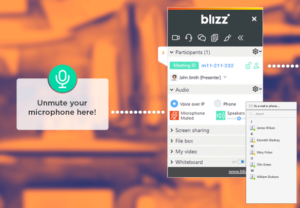 blank on the opening screen of the Blizz App. Sometimes there will be a convenient web link in your meeting invitation email that will launch your app and immediately connect you to the meeting with a single click.
When you are connected there will be a little window with the heading ‘blizz’ Notice that your microphone is turned off by default (red mic icon with a diagonal strikeout line). You must click to turn this on to be heard. This works independently of the mute key on your computer or headset, so check that as well if you can’t be heard. Settings are available for audio and other functions just below the microphone icon.
Normally peoples’ voices will be transmitted over the internet. But if web connections get disrupted, there is a linked conference call feature available that the meeting organizer can provide as a fall-back.
As I write this in October of 2017 I’ve hosted two Blizz meetings. The first was delayed because some participants couldn’t get their microphones to work and we had to fall back on the phone link. The second meeting was delayed because a key participant did not understand that she had to install the app first. But once we got everyone connected the connection was great – superior to skype and very conversational.